Layout History

Contents
If the Logging/Audit Trail add-on is purchased, FCS Express tracks every action performed by a user on a layout.
(Additionally, System Level Audits will track system level events)
To view the layout history, use the File tab→Info→View Layout History command to bring up the Layout History Viewer window (Figure 17.1).
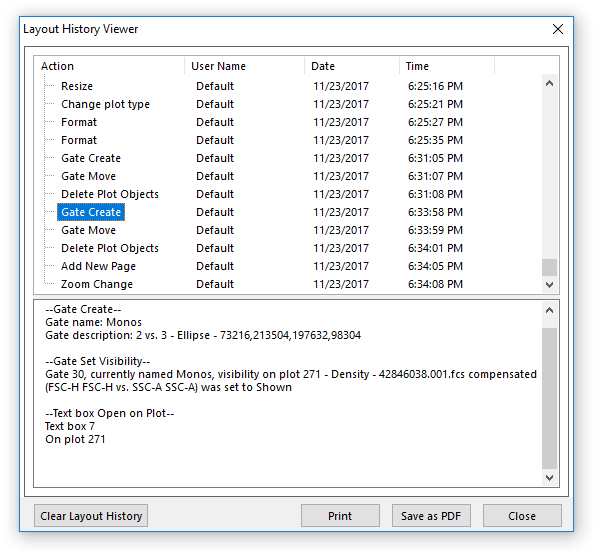
Figure 17.1 Layout History Viewer
Every action performed contains the following information:
•In the Action column, there is a description of the action performed.
•If security is enabled, the User Name column lists the name of the user who performed the action.
•The Date column shows the date when the action was performed.
•The Time column contains the time the action was performed.
Note that dates and times are stored internally as UTC (Coordinated Universal Time) and converted to the zone used on the local computer for display.
Some actions also cause other actions to be performed. For example, when creating a gate, a text box is also automatically created. All of the associated actions are grouped under a single entry. In the figure, the Open Dot entry at the top of the list box contains two history sub-entries, Compensation Create and Open 2D Plot. To view all history entries for an action, click on the + to the left of the text of the action. The lower text region of the Layout History Viewer contains more details about the currently selected action.
You can Print the layout history or Save it as a PDF. If you Save it as a PDF, you will be prompted to navigate to the location where you want the PDF to be stored as well as give it a different name. After naming the PDF, there are three PDF Password Protection options (Figure 17.2)
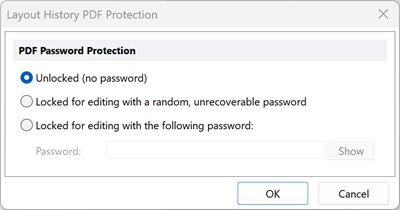
Figure 17.3 Options for Layout History Report PDF Protection
Option |
Explanation |
Unlocked (no password) |
No password is assigned. The PDF can be opened and edited in a third-party PDF editor without restriction. |
Locked for editing with a random, unrecoverable password |
A random password will be assigned. The PDF can be opened and edited in a third-party PDF editor if the random password is entered. However, this password is unknown to the creator essentially making the PDF completely secure from editing. Note: This password is not recoverable within FCS Express or by De Novo Software. |
Locked for editing with the following password |
A password that is chosen by the user is assigned. The PDF can be opened and edited in a third-party PDF editor if the known password is entered. Note: This password is not recoverable within FCS Express or by De Novo Software; however, it can usually be changed within the third-party PDF editor. |
The Layout History may also be cleared:
•Select Clear Layout History at the bottom of the Layout History Viewer dialog (Figure 17.4 Step 1).
•Enter a Note and press OK (Figure Below, Step 2) in the Clear Layout History dialog.
•The Layout History will be cleared and a single action referring to the clearance will be listed in it (Figure Below, Step 3).
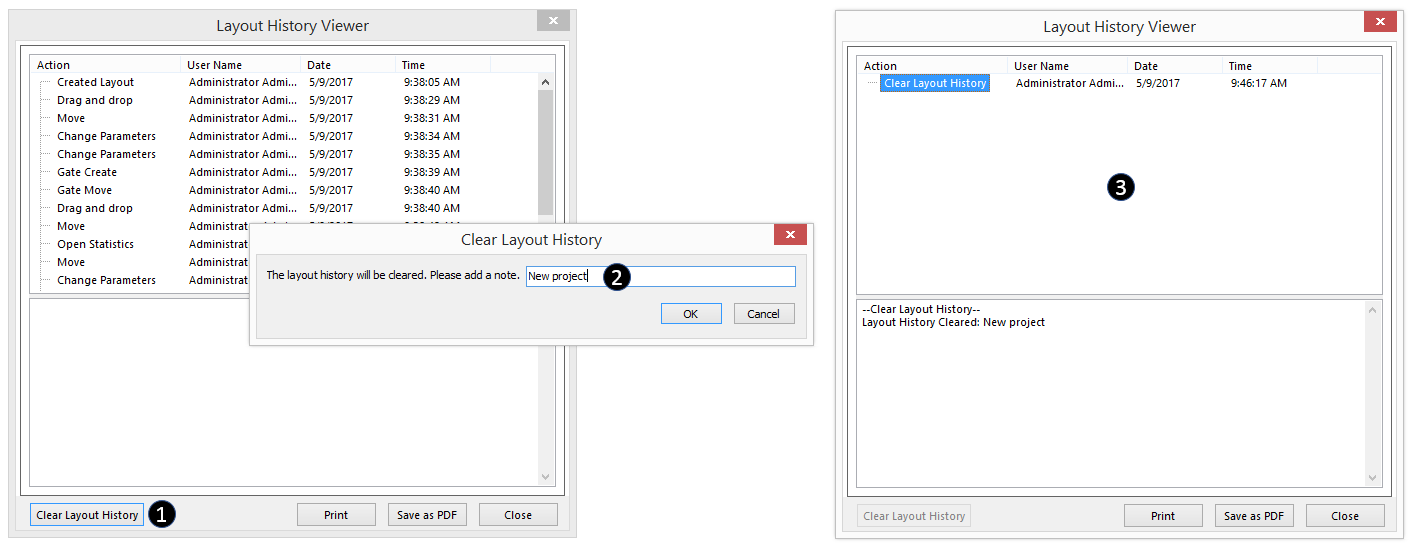
Figure 17.2 Layout History can be cleared via the Clear Layout History button.