Signing Layouts

Contents
To sign a layout, use the File tab→Info→Electronic Signatures→Sign command to bring up the Sign dialog (Figure 16.5).
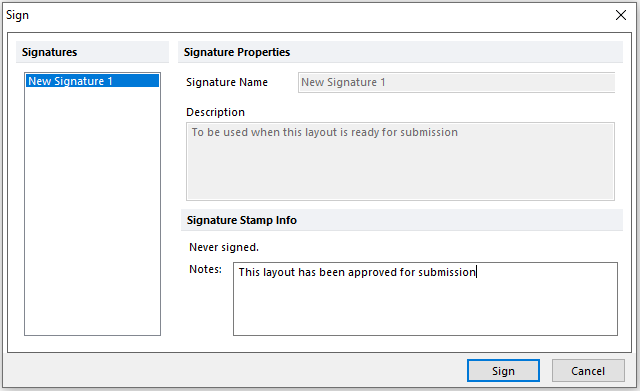
Figure 16.5 Signing a Layout
The list on the left will show signatures that are allowed, based upon the current user’s security group.
If no signature are listed, either no signatures have been defined for the current security group or, no signature are currently allowed based on the Signature Order option.
Press the Sign button to sign the layout. An optional note or comment can be entered in the Notes field. After pressing Sign, the user will be required to confirm their password.