Moving Markers

Contents
Markers can be moved by clicking and holding on the center point of the marker using the mouse and adjusting the position of the marker.
Note: If a dynamic marker is manually moved on the histogram, it gets converted to a manual marker.
When the marker is selected by clicking on it, three points will appear: a resizing handle at the left- and right-boundaries, and a point in the center for moving the marker (Figure 7.65). Position the mouse cursor over the central point so it turns into a four-headed arrow. While keeping the mouse button pressed, move the marker to a new position. Release the mouse when the marker is in the new position. To cancel moving the marker mid-way through a move, press the Esc key before releasing the mouse button and the marker will return to its original position before a move was attempted.
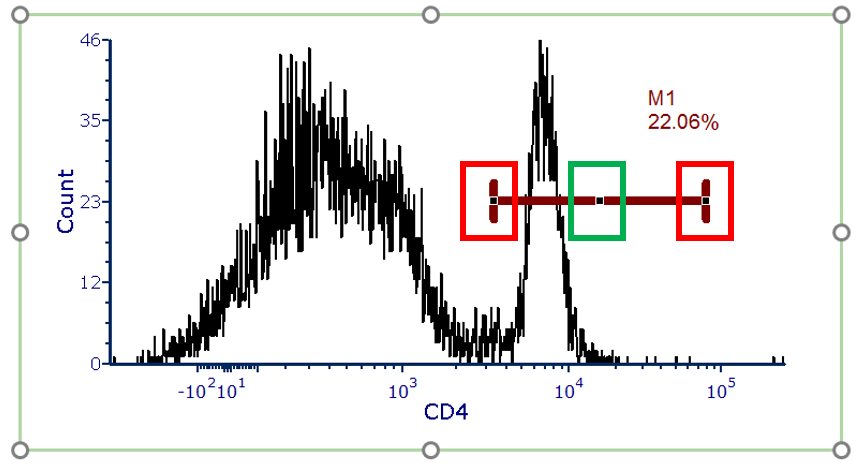
Figure 7.64 - Histogram showing a marker. Red boxes indicate the marker resizing handles and green box indicates the marker center point.
Please refer to the next chapter to learn how to resize a marker with handles or move a marker by defining its boundaries.