Gate Options

Contents
The FCS Express User Options Gate category (Figure 20.31) lets the user select the default FCS Express User Options for Gate View, Gate Navigator and gates.
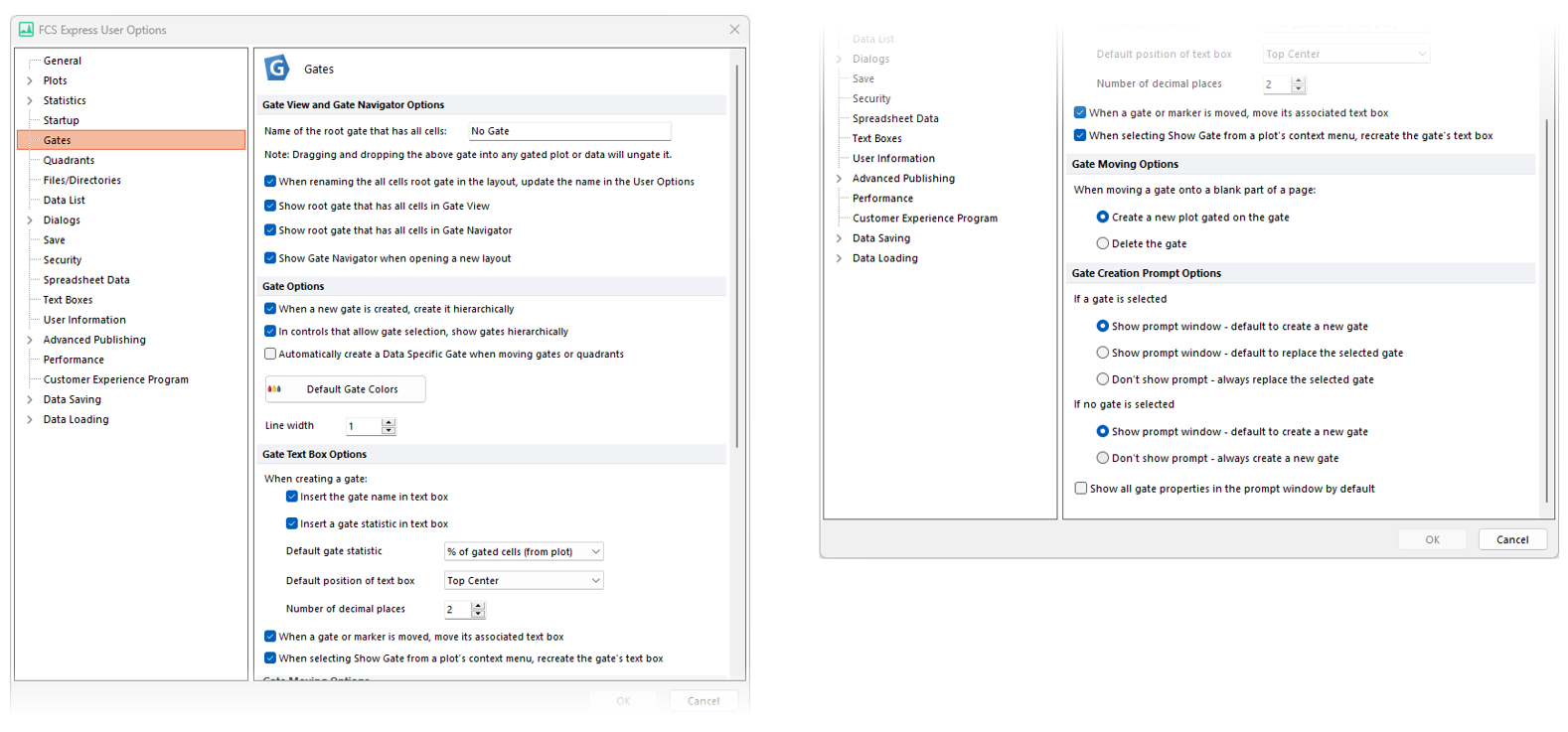
Figure 20.29 Gate options
These options are described in the table below.
Option |
Explanation |
|---|---|
Gate View and Gate Navigator options |
•Name of the root gate that has all cells. This is the name that will be assigned to the root gate containing all cells in new layouts. Default is No Gate. •When renaming the all cells root gate in the layout, update the name in the User Options. This allow to automatically update the file above (i.e. Name of the root gate that has all cells) when the root gate is renamed in either the Gate View or the Gate Navigator. •Show root gate that has all cells in the Gate View. This applies to new layout. •Show root gate that has all cells in the Gate Navigator. This applies to new layout. •Show Gate Navigator when opening a new layout. If checked, the Gate Navigator will be displayed automatically whena enw layout is created.
|
Gate options |
•Choose to use hierarchical gating as the default logic for new gates. •Choose whether to show gates hierarchically in menus that allows gate selection. •Choose to automatically create Data Specific Gates when moving gates or quadrants. •Set the default gate colors, which apply to gates according to the order of creation. •Set the width of the line used to draw the outline of the gate on a plot.
|
Use Gate Relevance Filter This option allows the user to shorten gate lists in several component of FCS Express, such as: •the Overlay Gate drop-down menu (on plot and in the Overlay formatting dialog), •the Gate > Show Gates option in the plot right-click menu •the gate list in the Gates To Display formatting dialog (for plots and statistics table). •the gate list in the "Statistic Token Edit" dialog.
When this option is active, only relevant gates will be listed in the component above. Two criteria are used to define gate relevancy:
•Parameter-based relevancy oGate parameters should match any of the parameters of the plot data file. oThe match is done according to what defined in the User Options for Parameter Matching (see "In new layouts, remember parameters by" option). oIf any of the gate parameters does not have a matching parameter in the plot data file, the gate is considered irrelevant in all components listed above.
•Hierarchy-based relevancy. This criteria applies differently based on the component. oIn the Overlay Gate" drop-down menu, all gates are always considered relevant. oIn the Gate > Show Gates right-click menu, only gates that are children of the overlay gate are considered relevant. oIn the Gates To Display formatting dialog (for plots and statistics table), all gates except the parent gates of the overlay gate will be considered relevant. oThe gate list in the "Statistic Token Edit" dialog all gates except the parent gates of the overlay gate will be considered relevant
|
|
• Gate Text Box options |
•Determine whether or not to insert a gate name in the Gate Text Box. •Determine whether to show a gate statistic in the Gate Text Box. From the drop down menu, choose from several default gate statistics. •Define the default position of the Gate Text Box. •Determine number of decimal places. •Move the text box associated with a gate/marker when the gate or marker is moved. •Recreate the gate's text box when selecting Show Gate from the plot's context menu.
|
Gate Moving options |
When moving a gate onto a blank part of the page, choose whether to Create a new plot on the gate or to Delete the gate.
|
Gate Creation Prompt options |
Choose prompt window options that appear when creating a gate, depending on whether an existing gate is selected or not.
|